Offer your schools the convenience of a simple, secure online sales platform with the Yearbook Market store. There are no setup fees, just service fees applied to purchases made through the online store (minimum $0.50/transaction).
Store Fees
|
Accessing the store
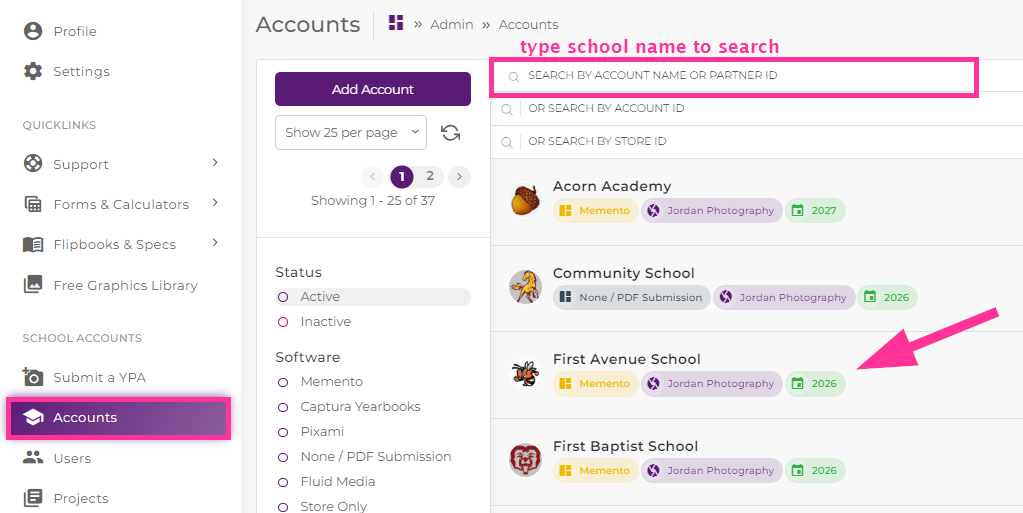
Access your school’s account on the Studio Source Dashboard via the Accounts menu option. Click on the school record to launch the account.
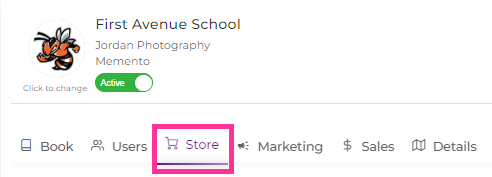
Click on the Store tab.
If you did not chose Hosted Online Sales as an option on the Yearbook Publishing Agreement form for a new account, click Create Store.
| If you did choose Hosted Online Sales as an option on the Yearbook Publishing Agreement form, the store will be ready for customization, including a single yearbook product.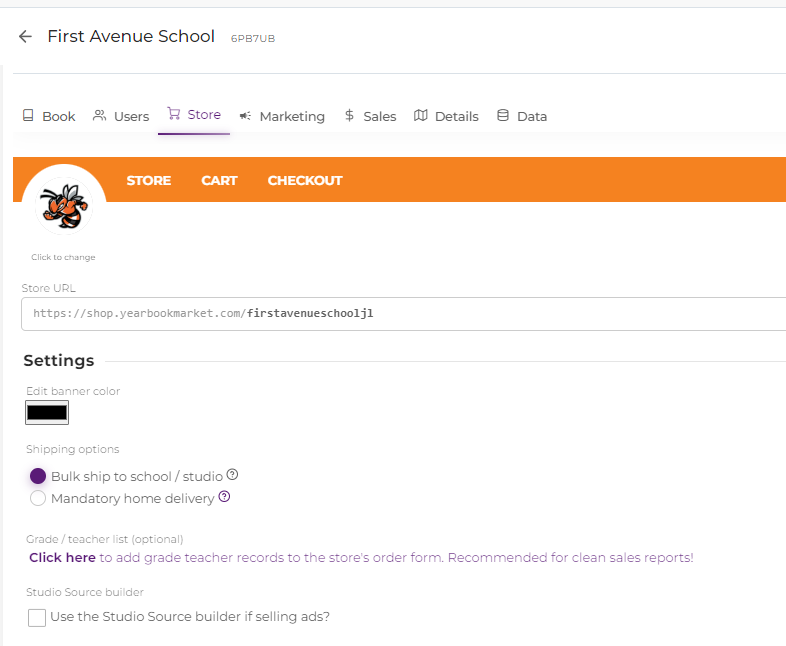 |
Store AppearanceIf desired, customize your store’s appearance. Add a logo by clicking on the grey placeholder icon, either on the store itself or the account's logo placeholder. Upload a jpg or png file. A square format is preferred. | 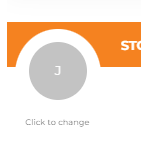 |
Update the banner color by clicking on the color swatch. Choose a color on the gradient or use the eyedropper tool to select any color on the screen (including the store logo). RGB, HSL and HEX codes may also be manually entered for an exact color selection. The color bar will update immediately. | 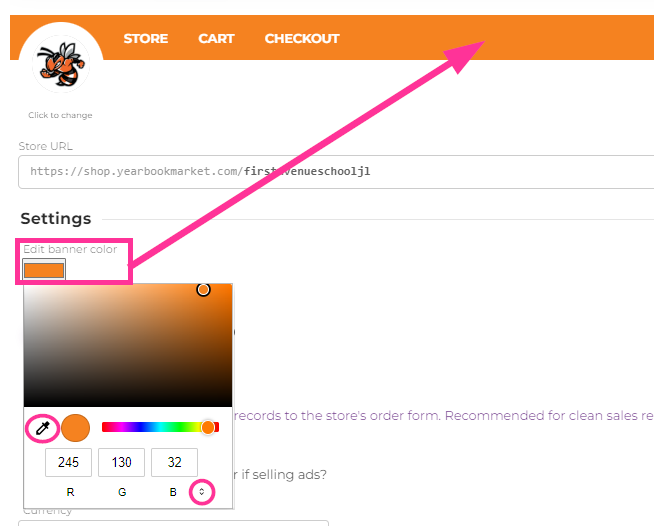 |
Store URL
The store url is automatically generated based on the account name.
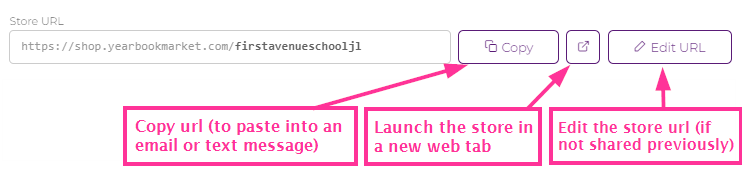
- Copy the url to send it to your school for distribution to the community.
- Launch the store site directly in a new web tab to verify updates made to the store.
- Edit/update the url if the site address has not been distributed to your school community yet. The new URL will be checked to ensure there is no duplication with another store in the Yearbook Market platform.
Shipping optionsShipping applies to yearbook products. Choose between two options in the general store settings. | 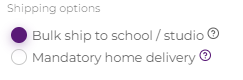 |
- Bulk ship to school/studio: All books are shipped from the manufacturing plant directly to the school or to your studio, as specified in the order. No additional shipping fees are added to the store order. Your online retail pricing should include the book's bulk shipping rate (details are available on your YPA form).
- Mandatory home delivery: All books placed by parents in the online store will ship to their homes, delivered by USPS. A shipping fee is automatically included on online orders, shown as a separate line item. Home shipping fees are set automatically; consult your pricing guide to view the home shipping rate table. (Any additional books ordered directly on the proof -- school copies or studio copies -- will be shipped as bulk orders.)
Adding Grade/Teacher info to the store
Adding Grade/Teacher info to your store to create a better shopping experience for your school community and your school.
When grade/teacher is added to the store, parents must add this information to their order form from preformatted list, rather than typing it into the form. Because the information is preformatted, sales reports and distribution lists are easily sorted. For example, if parents are allowed to type a grade and teacher for Mrs. Amy Mitchell's 4th grade class into their order form, reports and lists might list this classroom under any number of designations -- Miss Amy, A Mitchell, Mitchell, Amy Mitchell, Mrs. Mitchell; Grade 4, 4th, 4, 4th grade -- in a a single sales report, rather than all purchases appearing under 4 - Mitchell.
To add grade/teacher info, use the quicklink at the top of the store settings to go directly to the bottom of the page.

Click on Import Records to upload a spreadsheet of the grades and teacher info into your store. A link to a simple spreadsheet is provided, enabling you to enter all the homeroom groups efficiently. The updated sheet may be uploaded directly in this area. For schools that do not use teacher/homerooms, add "NA" to the teacher area. | 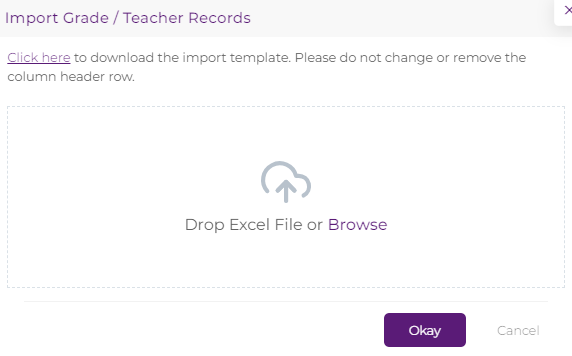 |
Add record opens a form where individual teacher names (homerooms) and grades may be entered. For schools that do not use teacher/homerooms, add "NA" to the teacher area. | 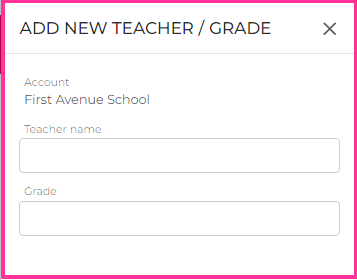 |
Clear records removes all grade/teacher info - useful for stores that have been in operation in a previous year. | 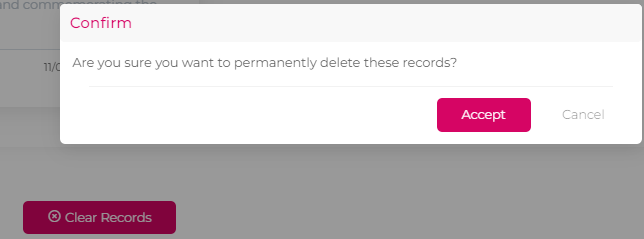 |
| The list of grades and teachers appear at the bottom of the page. Any record may be updated by clicking on it. Make adjustments on the right-side pane, then save the updates. | 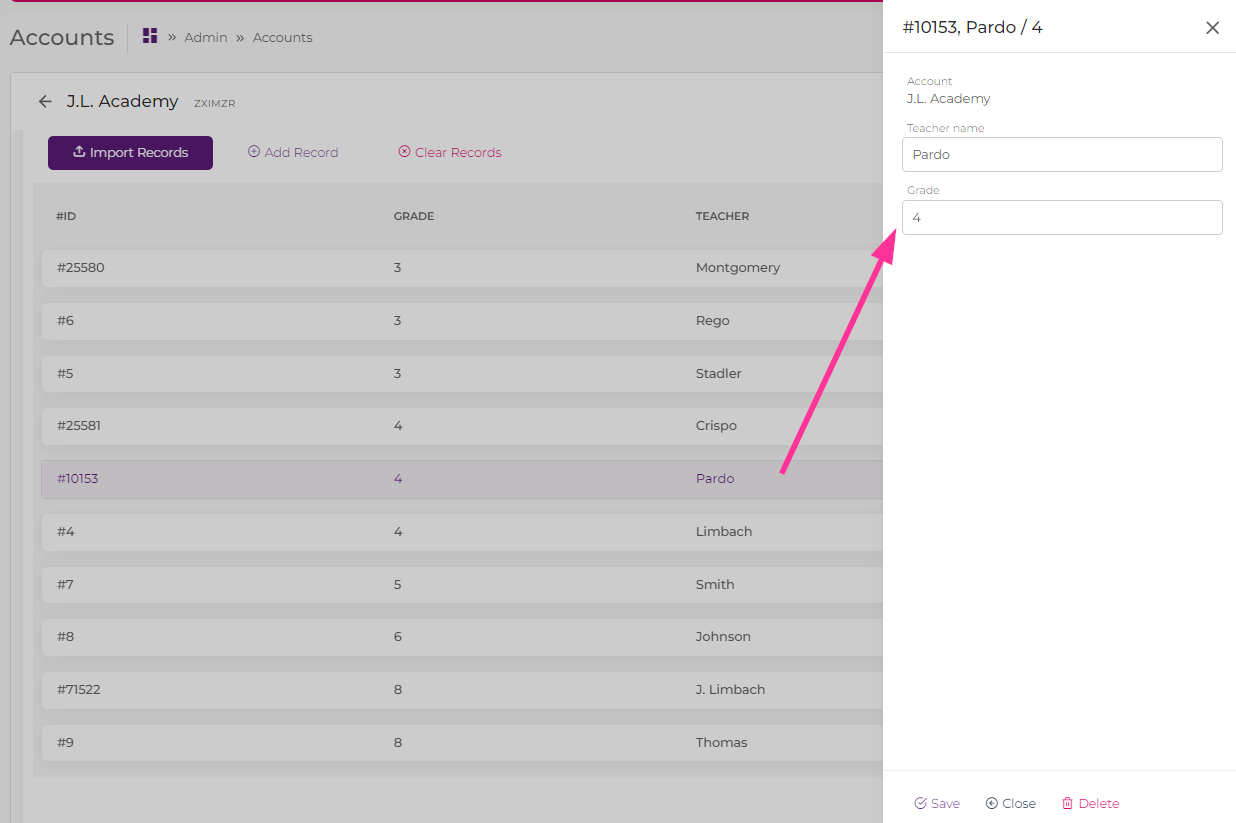 |
Important: Be sure to include a record for Staff. |
Convenience Fees
Store service feesChoose how service fees will be applied to your store. (Rate table is displayed above.) 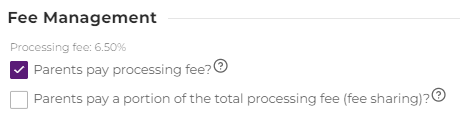 | 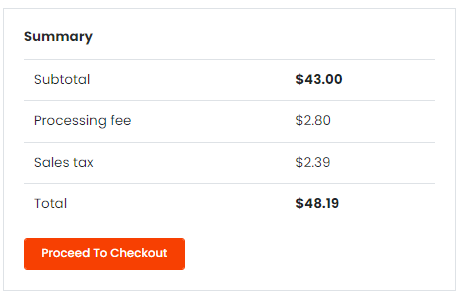 |
– If Parents pay processing fee is turned off, parents are not charged a store fee on top of the book price. The book's retail pricing must account for the service fee that will be retained by the store.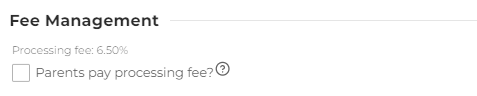 | 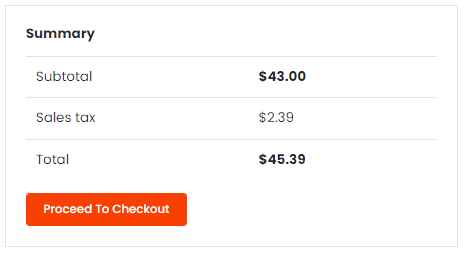 |
If parents pay the service fee, an optional Fee Sharing setting is available.  Specify the percentage of the total store fee should be paid by the parents, and how much should be absorbed in the yearbook price. | 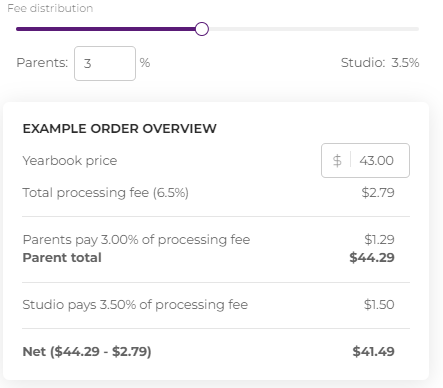 |
Ad feesIf an ad product is added to the store, ad fee handling may also be adjusted. ($6 for the ad builder, $1 for text dedications)Choose Ad fees are included in the price if the ad's retail pricing include ad builder or text dedication fees.  | 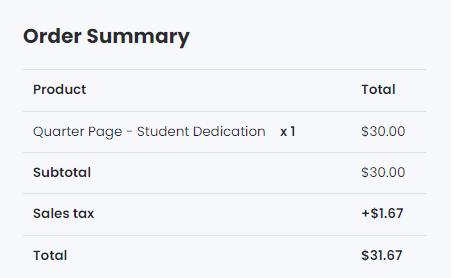 |
Choose Ad fees are shown as a separate line to display the ad fees as an add-on line item in the parent's online order. The fee will be deducted from the received funds. | 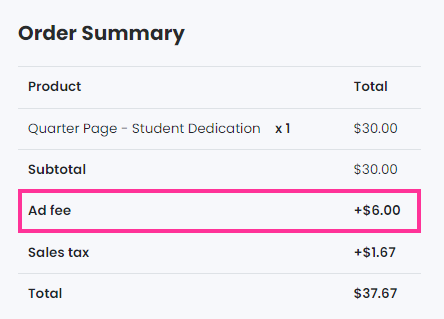 |
Sales Tax
Optionally use the online store to collect sales tax on orders. Tax will be calculated based on the zip code of the school. If required, use the override option if a different fee is required. Opt-in to collecting sales tax on shipping fees (for ship to home books).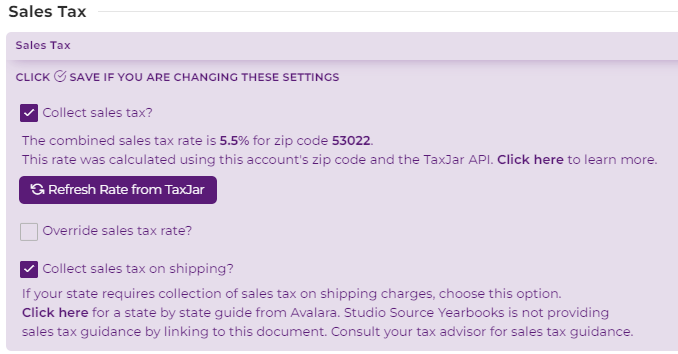
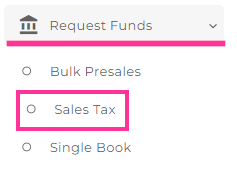
Sales tax funds are provided by echeck via the Admin menu's Request Funds area. Sales tax may be requested at any time of the year.
Adding Products to the StoreProducts may be added by school year under the Products area of the Store tab.Click Create Product to open the product setup form. | 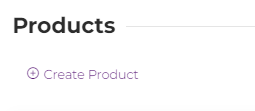 |
| Product types include yearbooks, dedication ads, text fields, and photo upload link. Learn more about setting up products in the following articles: | 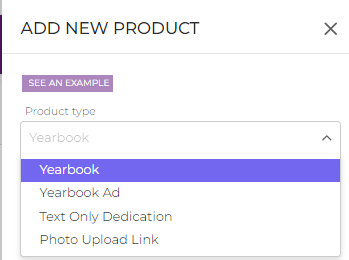 |
| Products are assigned to a school year, organized in collapsible drawers. Each year shows the number of products added to it -- green for active sales, red for inactive. | 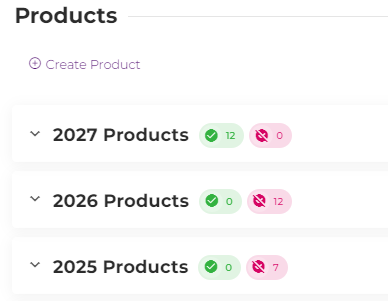 |
| Within each year, products are triaged by product type. | 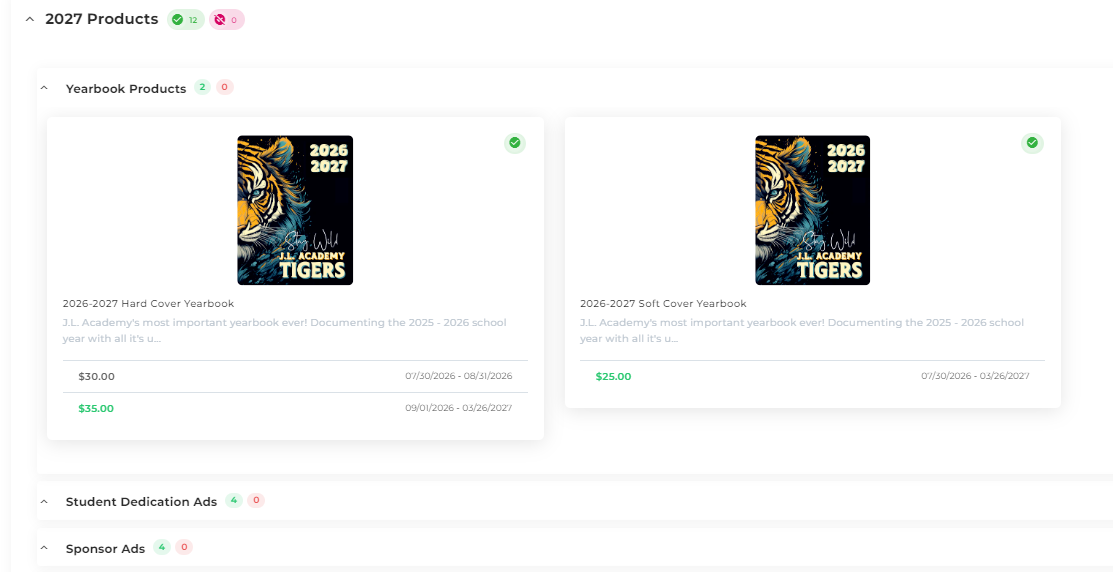 |
| To save setup time, products may be cloned within the current year and from previous years** then updated. Click on a product to open its settings in the right-side pane. Click Clone at the top of the window. A copy of the current product will be generated. ** If the product is cloned from a previous year, be sure to change the product year to match the current season. | 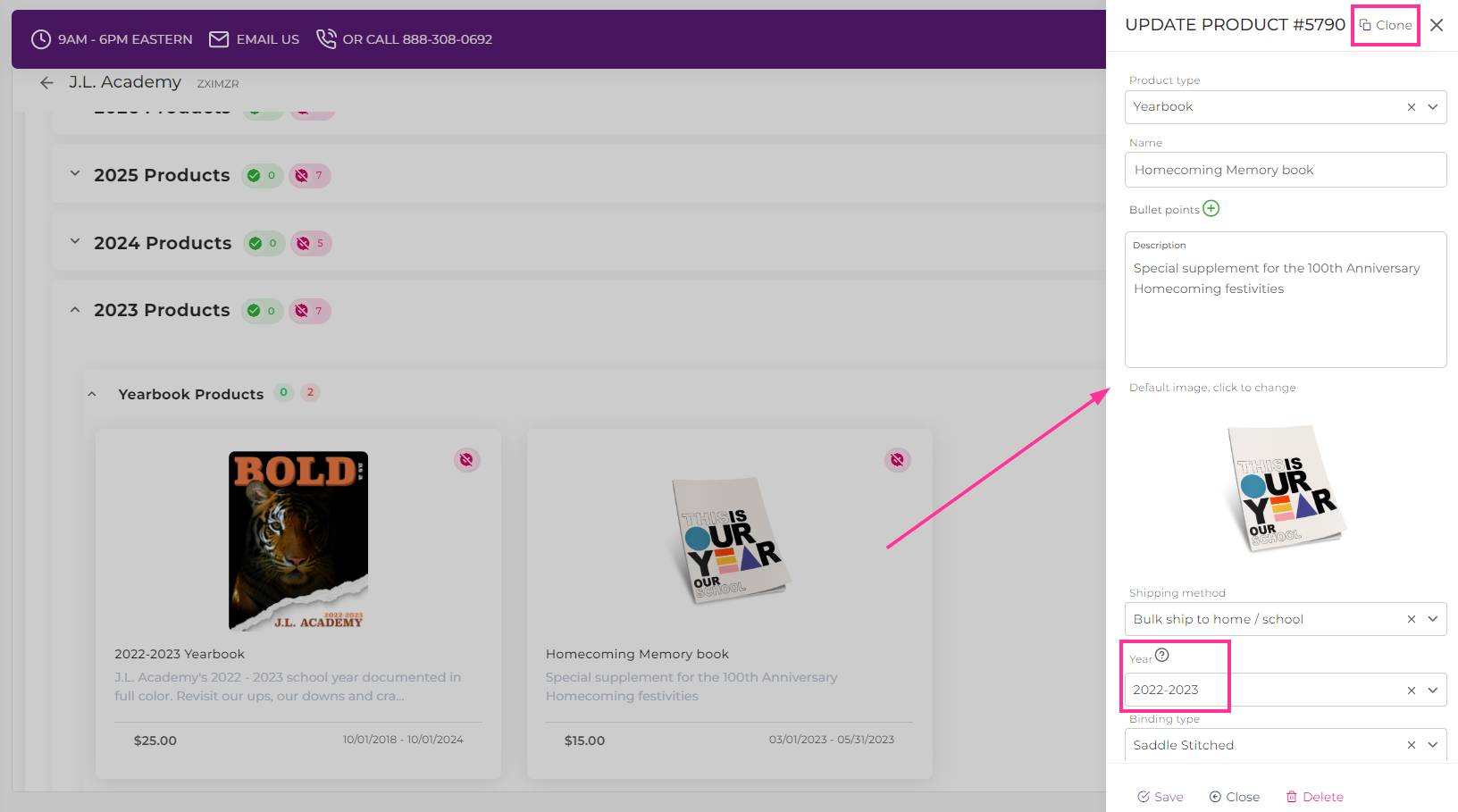 |
Was this article helpful?
That’s Great!
Thank you for your feedback
Sorry! We couldn't be helpful
Thank you for your feedback
Feedback sent
We appreciate your effort and will try to fix the article